Unlimited iCloud storage with shared albums
Learn how to avoid the iCloud storage limit of 5 GB by using shared albums. This trick gives you unlimited free iCloud storage for your iPho
Don't want to take any risks? Our iPhone data recovery at a fixed price costs 179,90 € including a USB drive and has a 95 % success rate. If unsuccessful, only a 29,90 € processing fee applies.
As an iPhone user, you are probably familiar with the problem that the standard iCloud plan only includes 5 gigabytes of storage. With 5 gigabytes, you will never be able to store all your photos and videos. However, there is a little trick that lets you get around this storage limit and store virtually unlimited pictures and videos in iCloud. Find out how it works in this article!
The problem with the iCloud storage limit
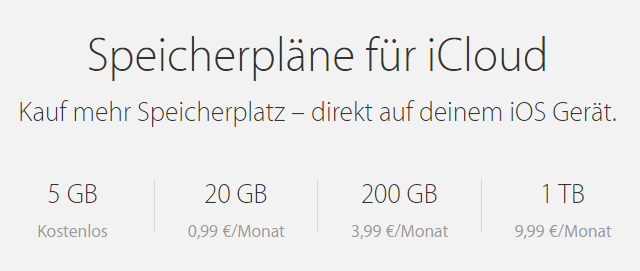
The photo library offers an advantage: if iCloud Photos is enabled in Settings, all your pictures are automatically uploaded to iCloud. This makes it easy to access these photos through the iCloud.com website. Once the photos are stored in iCloud, you can delete photos from your device to free up some space on your iPhone. The only problem is that you have a maximum of 5 gigabytes of free storage available. This space fills up quite quickly, and not everyone wants to pay for a larger plan with 50, 200 or 2000GB of storage.
The trick: use Shared Albums
However, there is a clever trick to get around this limit. Enable Shared Albums in Settings, and you can organise your photos into online albums. The major advantage is that these online albums do not use any of your iCloud storage, but the photos are still stored in iCloud. This means you could store unlimited photos and videos in these online albums. They are linked directly to your Apple ID and will not be lost if you lose your phone.
How to set up Shared Albums
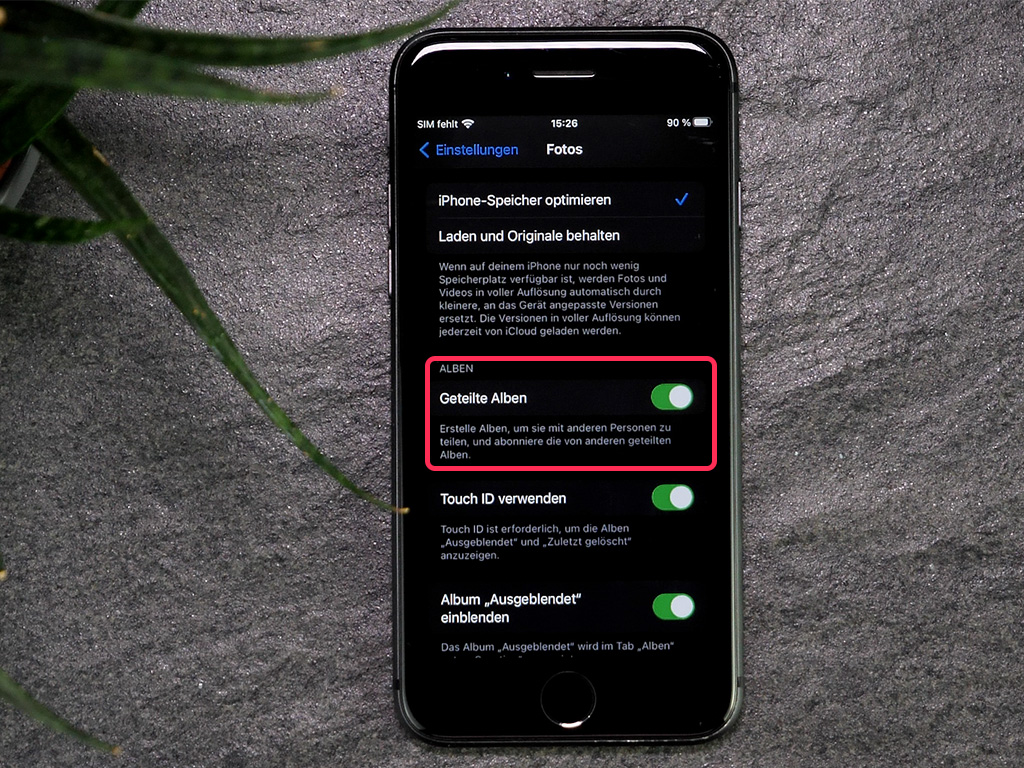
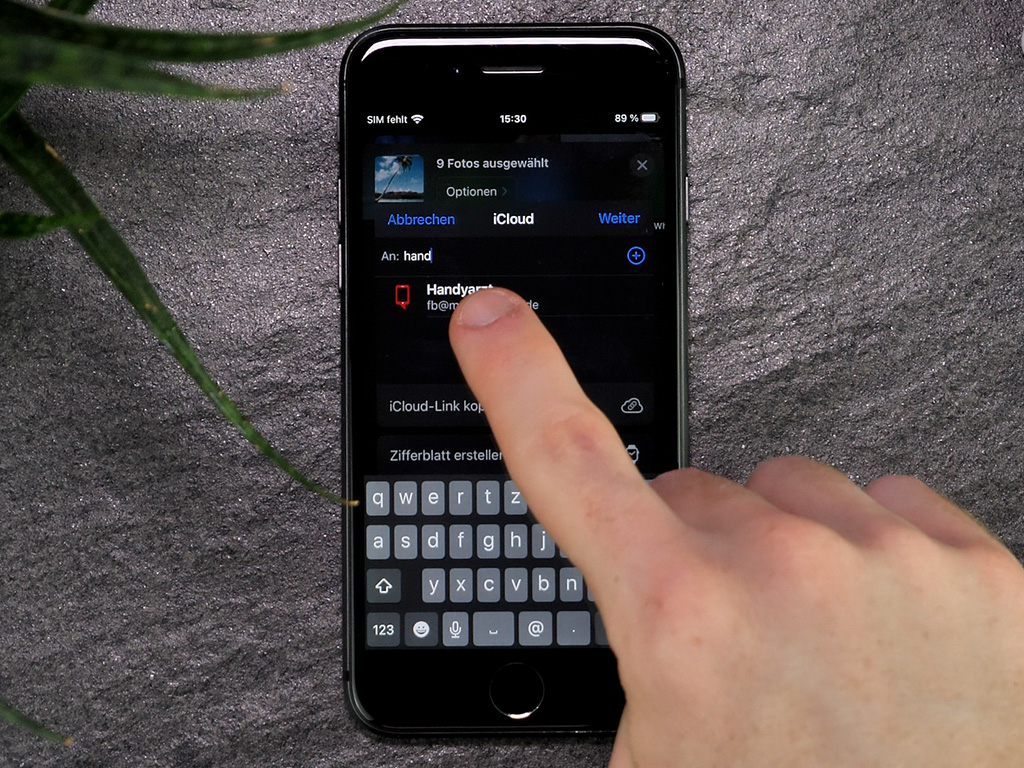
- 1Enable Shared Albums in Settings.
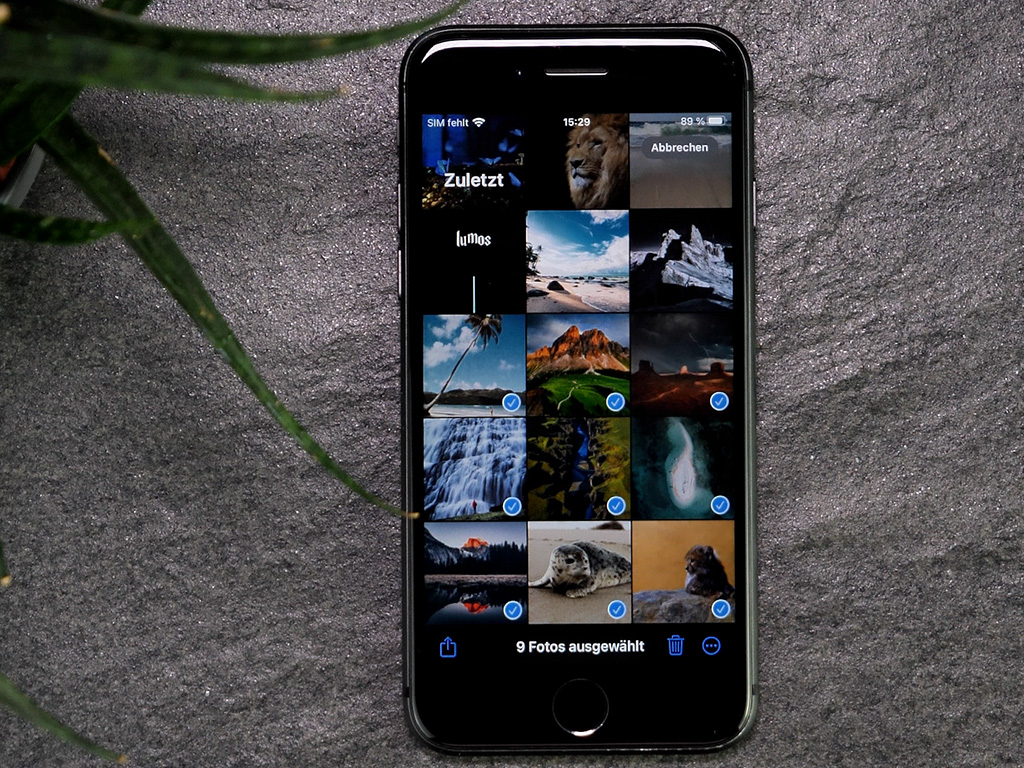
- 2Select the pictures you want to store in the albums.
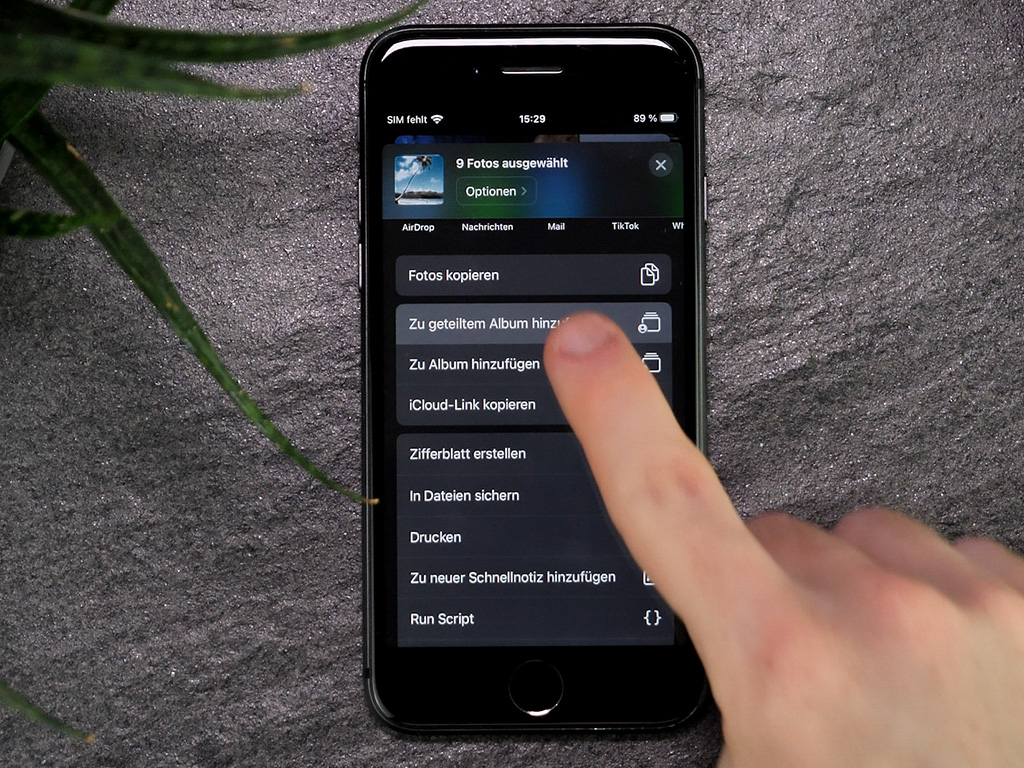
- 3Click “Add to Shared Album”.
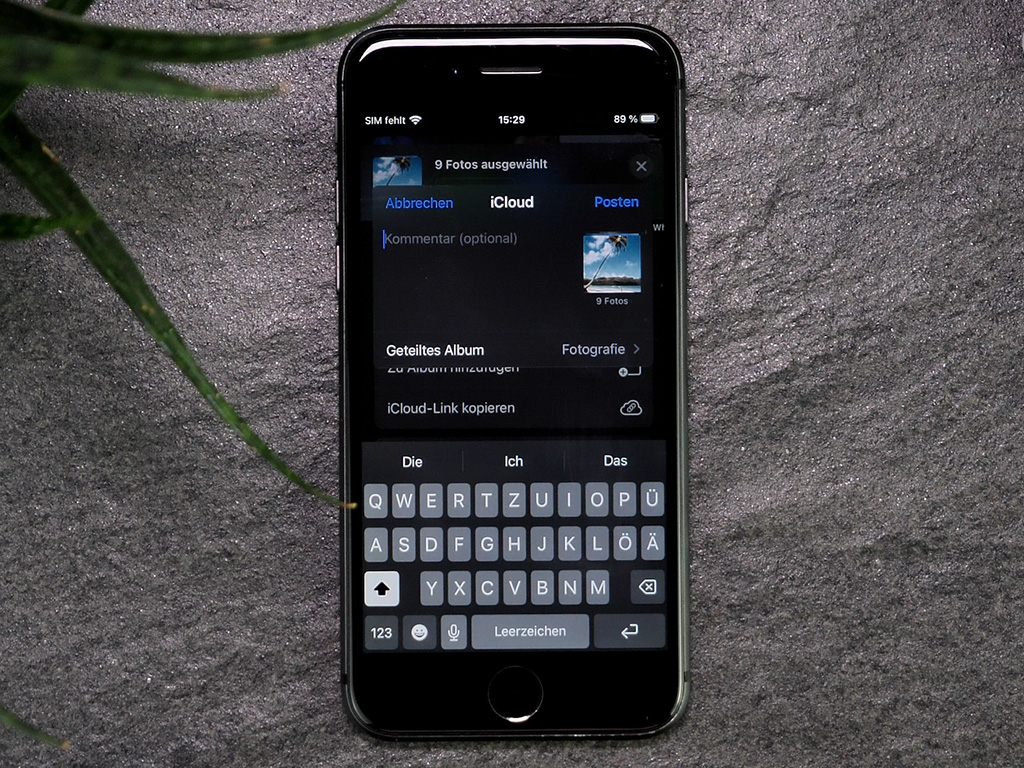
- 4Either create a new album or select an existing one and name it.
- 5Optionally, add family members or friends you want to share your online albums with.
You can choose whether these people can comment on your photos, download photos or add their own photos. If you do not want to include anyone else, you can set it up so that only you have access to your online albums and no one else can view them.